

Faster than ever before, the digital handoff from AdmissionsPlus to AdminPlus is as smooth as pushing a button. The Approval Center is a brand-new AdminPlus.com area that allows the user to review any incoming data before it is received as a change in the system. Once you hit that “Approve” button, all prospect data, including parent/guardian contacts and uploaded documents, flows directly into AdminPlus, creating a new student profile within the database without any retyping. This fast and easy process eliminates manual data entry and ensures clean, consistent records.
Top 10 Noteworthy Features for AdminPlus.com
Using the Rediker Software Online Student Information System Every Day
With a fresh, intuitive interface and anywhere, anytime access, AdminPlus.com is Rediker Software’s next-generation student information system for PK-12 schools, designed to deliver even better user experience, faster workflows, and smarter data access through a browser. As educators manage day-to-day tasks, they can take advantage of the new, improved, and exclusive features only found in AdminPlus.com while still using the Classic version of Administrator’s Plus. Today, we review our top 10 reasons to log into AdminPlus.com every day.
Table of Contents
⮡ 2. Seamless Enrollment from AdmissionsPlus
⮡ 3. Easy Lookups, Filters, and Custom Views
⮡ 4. Period Attendance Batch Entry
⮡ 5. Print Attendance Bulletin Reports with Markup
⮡ 7. Dashboard Tiles for “At Risk” Students
⮡ 8. Edit Discipline Incidents Before Approval
⮡ 9. Professional Email Signature Blocks
⮡ 10. Live Grades and Averages
Watch the Video ▶
 Go to Video
Watch the original webinar recording: "Updated: Ted's Top 10 Reasons to Log into AdminPlus.com Every Day"
Learn More About AdminPlus
 AdminPlus SIS
Interested in learning more about the features of AdminPlus? Current users can read our Support Guides. We also offer in-depth professional development sessions with our expert Rediker Trainers. Reach out to your Rediker Account Manager or email sales@rediker.com to get started.
Not using the AdminPlus Student Information System yet? Learn more by visiting our product page or reach out to us to schedule a demo.
1
Attendance Quick Entry
Scan, Click, Done — Attendance at Lightning Speed
AdminPlus.com brings forward a beloved Classic feature and makes it even faster. With the Attendance Quick Entry mode, school staff can scan a student ID card or type a name/ID to immediately record attendance and automatically create a tardy slip. Settings allow you to define the attendance code (“tardy”, “dismissed”, etc.), timestamp, and tardy slip output. It’s fast, customizable, and ideal for high traffic offices.
To use the Attendance Quick Entry mode, go to the School tab. Under Daily Attendance, click the arrow icon in the upper right-hand corner of the Edit Student Attendance tile. This will bring you to the Enter Student Daily Attendance screen. From there you can click the Quick Entry button to get started.

AdminPlus Quick Entry Attendance Mode
2
Seamless Enrollment from AdmissionsPlus
From Prospect to New Student in No Time Flat

The Approval Center is located on the left-hand side of AdminPlus.com as one of the main areas in the system. In the Overview area of the Approval Center are the different buckets of incoming data, including Admissions. Click the Sent From Admissions number to see the detailed records waiting to be accepted into AdminPlus.

AdminPlus Approval Center for Admissions Data
3
Easy Lookups, Filters, and Custom Views
Have it Your Way with Customizable, On-Demand Views
Take advantage of the Multiple Student View in AdminPlus.com and build unlimited custom Views using any of the 260 demographic fields. Search, filter and save your Views to easily switch between targeted lists of isolated data whenever needed. With the new AdminPlus interface, you can easily arrange your criteria with drag-and-drop capabilities, creating Views that filter by bus routes, financial aid statues, IEP students, or any other subgroup. Any View can be exported for Excel, allowing for deeper analysis and data visualization with PivotTables.
To create a new View, go to the Student tab and toggle on Multiple Student View. Click the blue View Options (…) button to begin. Use the View dropdown to switch between any View you have saved.


4
Period Attendance Batch Entry
Update Dozens of Records in Seconds the Easy Way
Let the system do the work with batch entry. With the Period Attendance Batch Entry, you can quickly update the attendance status for an entire group of students all at once. Use this feature for any number of students that you know will miss a few periods of the day like for a sporting event, field trip, or general early dismissal.
AdminPlus.com makes the well-known feature of batch entry even better with its sleek interface and easy-to-understand options for filtering and more. You can filter students based on demographic fields (such as team membership) and apply attendance codes to selected periods. This ensures consistent entries and saves significant time compared to updating records individually.
Get to the Batch Entry function for Period Attendance by going to the School tab, then Period Attendance. Click the arrow icon in the upper right-hand corner of the Edit Student Attendance tile to get to the Enter Student Period Attendance screen. Once you are there, click the blue Batch Entry button to get started.
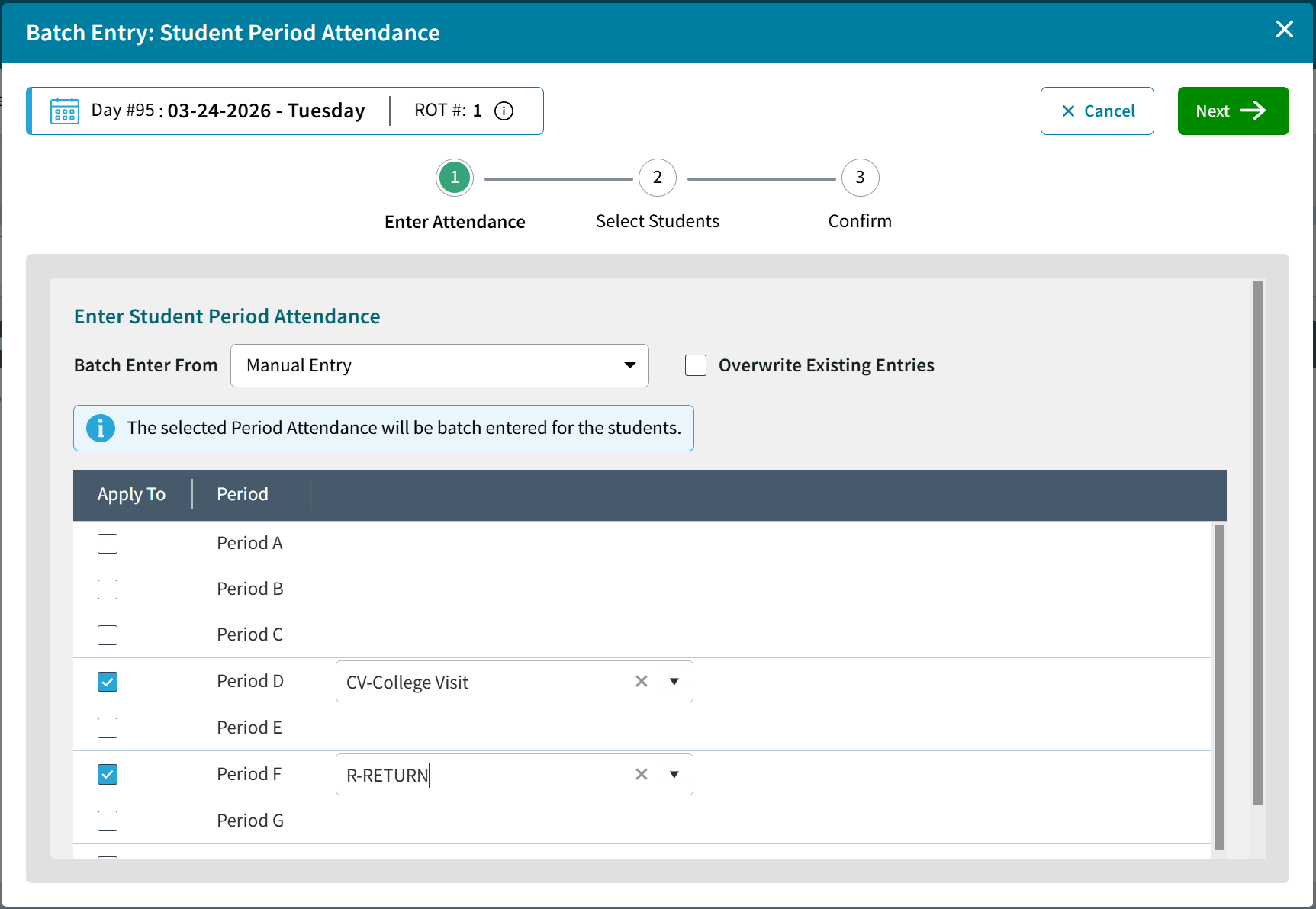
AdminPlus Batch Entry for Student Period Attendance
5
Print Attendance Bulletin Reports with Markup
Doodle, Highlight and Annotate Before You Hit Print
Because AdminPlus.com is browser-based, the Daily and Period Attendance Bulletin reports can now be marked up directly on the screen. When you go to print, you will see extra browser-based tools which can include a highlighter, pen, and text (depending on your browser settings) - perfect for calling out any piece of information that’s on the page. The markups you do here will print as shown in the report.
To get to the Attendance Bulletin reports, navigate to the respective Daily or Period Attendance areas within the School tab. Click on the upper right-hand arrow icon to open the bulletin screens. From there, click the blue Print button.

Browser Mark-up Tools for the AdminPlus Attendance Bulletin
6
Online Portfolio Viewer
Instant Document Previews with No Downloads Needed
AdminPlus.com now enables users to see Portfolio documents such as PDFs, Word Docs, and images directly in the browser File Viewer. There’s no need to download the files just to preview them. This is especially helpful for reviewing report cards, medical records, and documents imported from AdmissionsPlus.
Open any Portfolio document in the File Viewer by navigating to the Student tab and under the student’s Portfolio, click the eye icon on the left side of any listed item.

AdminPlus Student Portfolio View
7
Dashboard Tiles for “At Risk” Students
Real-Time Stats Crystal Ball to Spot Trouble Early
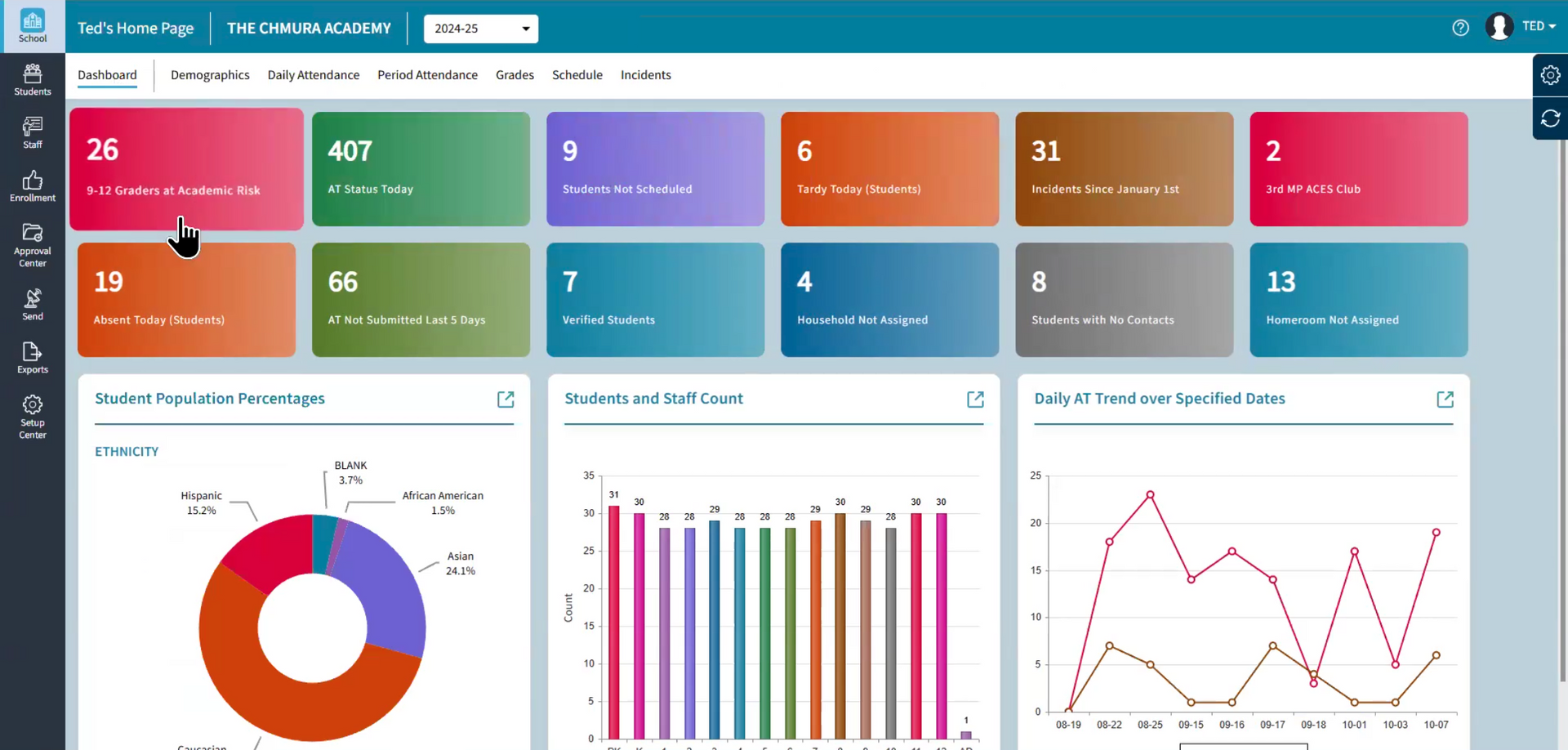
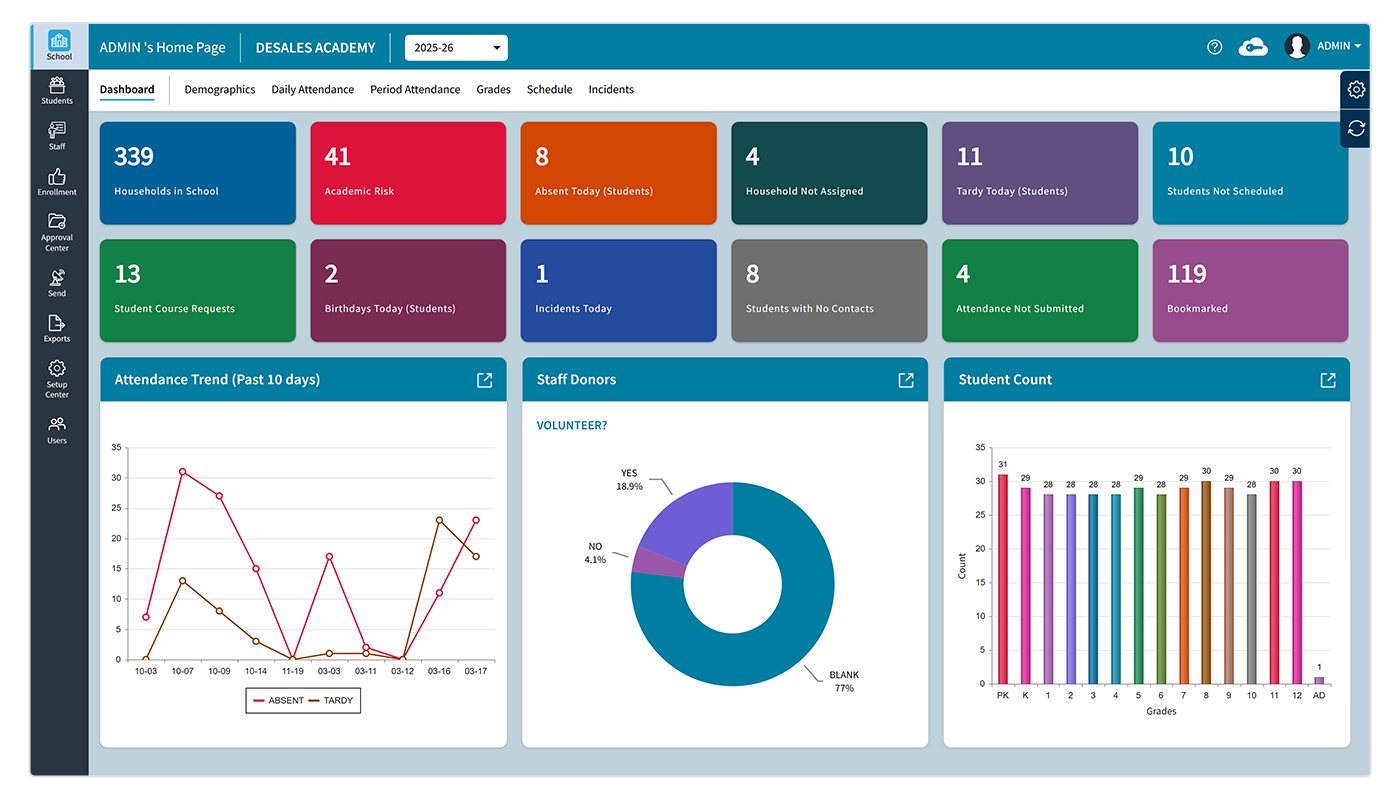
The Dashboard in AdminPlus.com is a user’s new and improved homebase to see trends and statistics like never before. No need to run a report – the Dashboard is ready and waiting to provide real-time academic insights using live system data.
You can create tiles that automatically populate with the number of students who meet certain criteria, such as low averages within a marking period, to group them as “at risk” students. Thresholds, grade levels, and data sources are fully customizable, giving administrators a quick, at-a-glance view of any student who may need support.
Get to your Dashboard via the School tab on the left-hand side of AdminPlus.com. Click into any tile to see the detailed list of students. You can export for Excel, print or edit the tile parameters. The Dashboard is a per-user area that can be further customized by drag-and-dropping the tiles to arrange the space. Users can also manage all the tiles stored in their Tile Library by clicking the Manage Dashboard gear icon on the slide-out tab to the right-hand side of the Dashboard area.

8
Edit Discipline Incidents Before Approval
Gatekeeper to Ensure Every Record Is Accurate, Polished, and Ready to Share
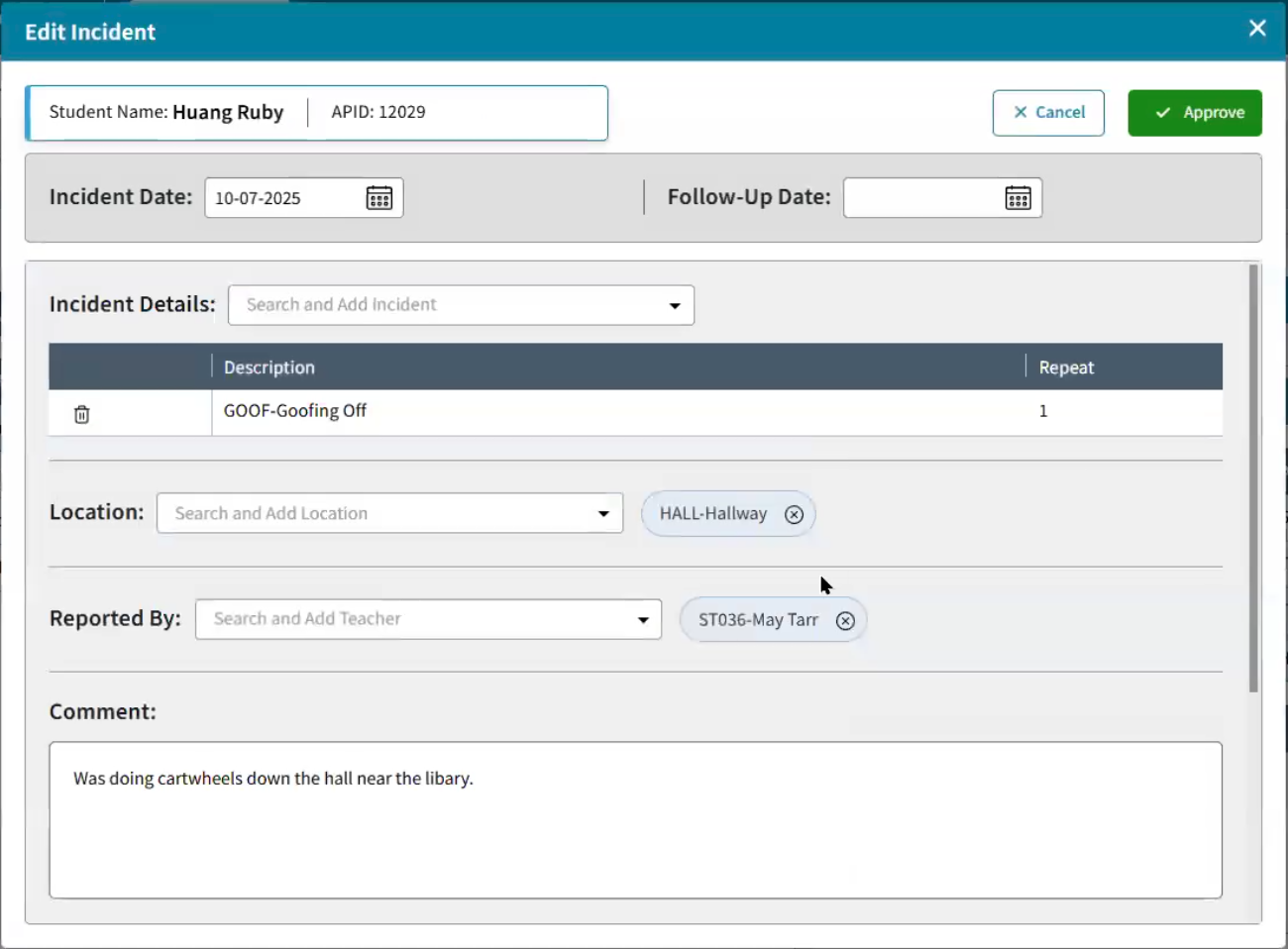
When teachers submit incident reports through PlusPortals, administrators can review and edit the incoming details directly in the AdminPlus.com Approval Center before they become part of the student’s record. This allows corrections to spelling, descriptions, or consequences, ensuring that the final record is accurate and appropriate before it becomes visible to parents, students, or staff.
Visit the Approval Center area or click into the School tab > Incidents > Receive Incidents tile. On the right-hand side you will see the editable details of the incident report.

9
Professional Email Signature Blocks
Set It and Forget It - Professional-Looking Signature Set Up Across All Emails
The system-wide email integration found throughout AdminPlus saves users time by offering built-in messaging tools to quickly send communications to any of the contacts, students and staff listed in the database. Using the email signature editor, you can create a consistent and professional-looking signature block that is inserted automatically when you are ready to write an email.
To set up your signature, open the email editor and click the gear icon in the upper right-hand corner. From there you can create and customize with text formatting, links, images, and more. Along with your own contact info, you could also include your school’s logo, website URL, PlusPortals URL, and any other helpful bits of information that should accompany your messages.

AdminPlus Email Signature Settings
10
Live Grades and Averages
A Window into the Gradebook with Live Teacher Data

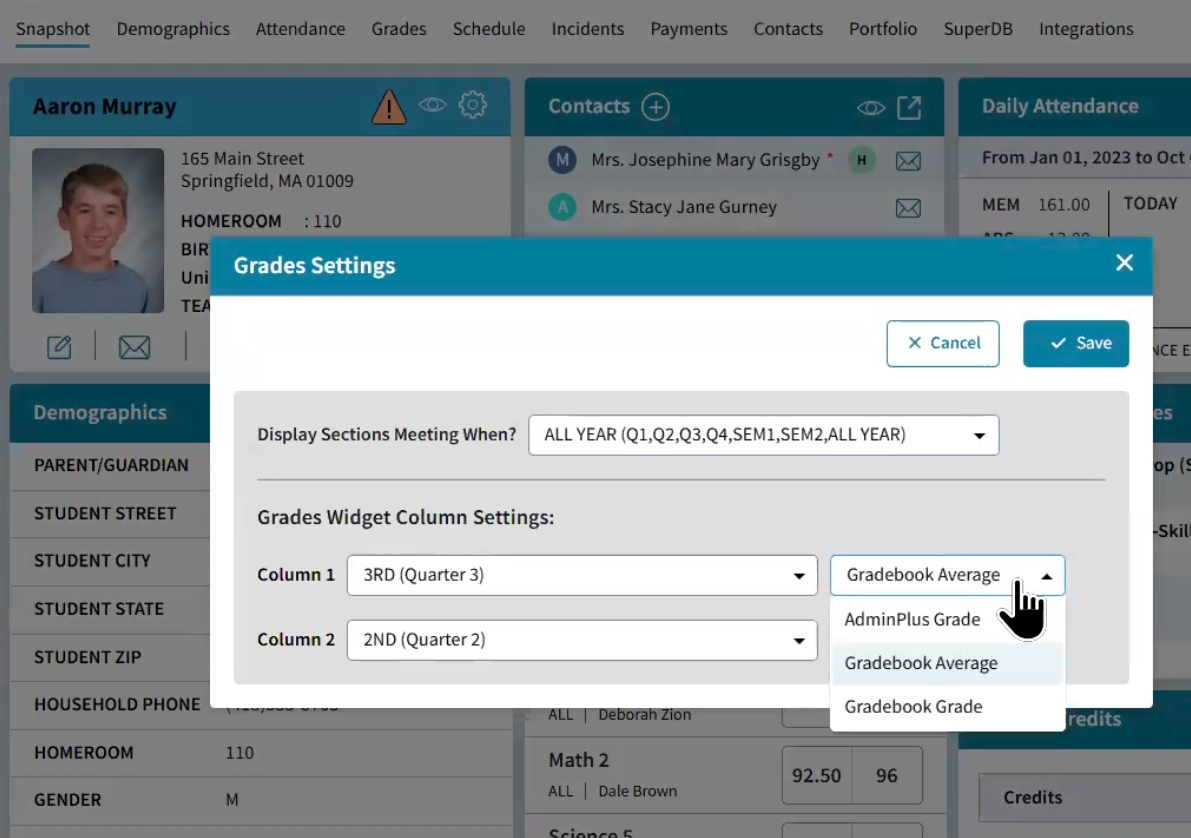
The seamless connection between AdminPlus and the TeacherPlus Gradebook is stronger than ever. Users can see how a student is doing in their classes by checking the real-time grade data displayed on every student’s Snapshot within the system. Unlike static report card grades, this sync is updated automatically as teachers make entries in their Gradebook. Using that data, up-to-date progress reports can be generated directly within AdminPlus which pull detailed assessment data from every class.
To see the live grade data, visit the Snapshot area of a student’s profile. Click the gear icon to set the visibility for Gradebook Average or Gradebook Grade. To generate a Progress Report, click the arrow icon in the upper right corner of the Snapshot Grade tile or navigate directly to the Grades tab of the student’s profile. From there, open the Reports sub-tab to access options for the Combined Progress Report.

Learn More
Interested in learning more? AdminPlus users can read our Release Notes and Help Guides here: https://support.rediker.com/support/solutions/14000076362
Expand your understanding of the many features and functions that come with the new AdminPlus.com. Contact us to be paired with one of our expert Rediker Professional Development Trainers today. Reach out to your Rediker Account Manager or email sales@rediker.com to get started.
Share this Post:

Looking for Gradelink Alternatives? Compare the top 10 options in 2026 by features, pricing, and school management tools.
Explore AdminPlus SIS innovation milestones for 2026, including 35+ enhancements to K-12 reporting, security, scheduling, workflows, and administration.

Discover the top 10 best School Management Software Systems in 2026. Compare features, pricing, benefits, and choose the right solution for your school.